The dreaded "storage almost full" notification is a universal smartphone user experience. Your photos stop syncing, apps crawl, and you find yourself frantically deleting emails just to free up a few precious megabytes. Sound familiar? You’re not alone.
Millions of us hit this digital wall annually, often because our cherished photos automatically back up to cloud services that offer limited free storage. Once that free tier fills up, the default solution presented is simple: pay for more. But what if there was a smarter, more cost-effective way to manage your growing collection of memories?
Stop Renting Your Memories: The Case for Owning Your Photo Storage
As Janice from Alabama recently highlighted to us, the recurring choice to either pay monthly for cloud storage or find an alternative is a common dilemma. Fortunately, you can take back control. By storing your photos on an external hard drive you own, you gain permanent access, free up your phone, and eliminate those endless subscription fees. Let's explore the easiest ways to make this happen.
Method 1: Transferring Via Your Computer – A Reliable Path
This approach offers robust control and allows you to manage large volumes of photos efficiently. The general idea is simple: copy your photos to your computer first, then transfer them to an external hard drive.
For Windows PC Users:
Connecting your smartphone to a Windows PC often treats it like an external storage device. Simply plug in your phone, navigate to its internal storage (usually under 'This PC'), and locate your photo folders (often 'DCIM'). You can then copy these files directly to a folder on your computer.
For Apple Mac Users:
Apple devices typically integrate with the Photos app on your Mac. When you connect your iPhone or iPad, open the Photos app and select your device from the sidebar. You can then import your photos directly into your Mac’s photo library.
An even simpler route for Mac users: if you’re signed into iCloud and have iCloud Photos enabled, your photos may already be syncing automatically. In this scenario, you can access and download them directly from the Photos app on your Mac or by visiting iCloud Photos in a web browser, bypassing the need to connect your phone.
(Note: Specific settings and steps may vary slightly depending on your device and operating system version.)
The Crucial Intermediate Step: Backup to Your Computer
Once you’ve copied or imported your photos to your computer, paste them into a dedicated folder. This creates a crucial temporary backup, ensuring your memories are safe before their final transfer to the external drive.
Moving Photos to Your External Hard Drive:
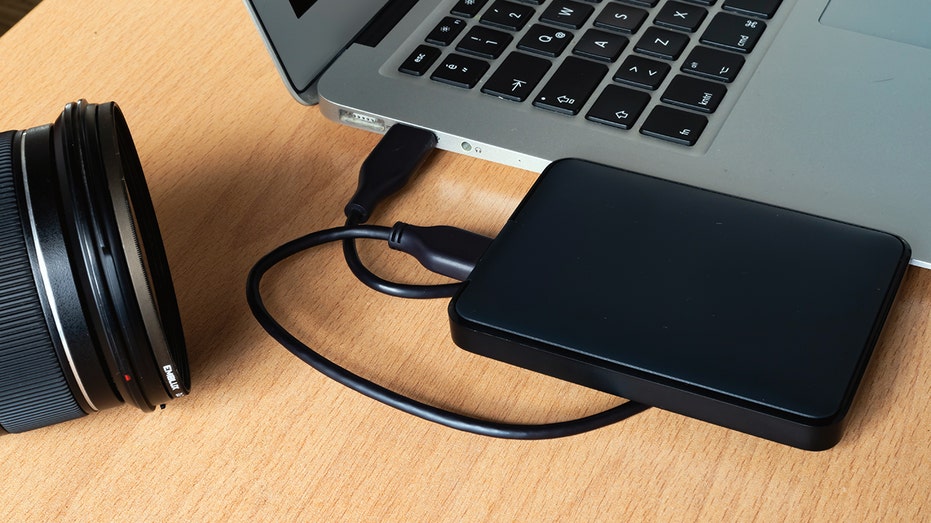
With your photos now safely on your computer, transferring them to an external hard drive is a swift process. Simply connect your external drive, create a new folder (e.g., "My Photos Backup"), and drag-and-drop or copy-paste your photo collection from your computer to the external drive. Your photos are now secured on a device you fully control. Modern external drives can comfortably hold tens of thousands of photos, offering immense capacity. For recommendations, check out our best external drives at Cyberguy.com.
Method 2: Direct-Plug Flash Drives for Instant Relief
If you prefer to bypass a computer entirely or need to free up space in a pinch, certain flash drives are designed to plug directly into your smartphone. These drives often feature:
- Dual connectors (e.g., USB-C and Lightning for iPhones, or USB-A and USB-C for Android).
- A dedicated companion app for easy photo transfer and management.
- Compact, portable designs.
After connecting the drive, open its associated app. From there, you can typically select and move photos directly from your phone to the drive. This is an excellent option for quick space liberation. Discover our top flash drive recommendations at Cyberguy.com.
Smart Habits for Managing Your Digital Photo Library
Organize for Easy Access:
Once your photos are on a hard drive, invest a few minutes in organizing them. Create folders by year, event, or theme to make finding specific memories a breeze.
The Power of Redundancy:
While hard drives are reliable, technology can sometimes fail. For ultimate peace of mind, consider maintaining a second backup of your most precious photos, perhaps on another external drive or a trusted cloud service. Two copies are always better than one.
The Financial and Control Advantage: Cloud vs. Owned Storage
Cloud storage might seem inexpensive initially, but those monthly charges quickly accumulate. An external hard drive often pays for itself in less than two years compared to ongoing cloud subscription fees. After that, your storage is essentially free. Crucially, your photos reside under your direct control, not solely on a corporate server.
Are Your Digital Habits Up to Par?
Curious about how well you’re protecting your devices and data? Take our quick quiz at Cyberguy.com to get a personalized breakdown of your digital habits and areas for improvement.
Reclaim Your Digital Freedom
Janice’s question resonates with millions: Must we perpetually pay companies just to safeguard our own cherished memories? The resounding answer is no. With a simple cable and an affordable hard drive, you can break free from recurring storage fees, keep every photo you desire, and maintain complete ownership. Once you adopt this method, it quickly becomes a fast and routine part of your digital life.
Consider this: if your phone holds years of irreplaceable photos and videos, shouldn't those memories be stored somewhere you fully control, rather than solely on a third-party server? Share your thoughts and questions by writing to us at Cyberguy.com.